Getting Started
Launch the EST Test Application by clicking the icon on the desktop or start menu.
Safety Light
The EST is equipped with a safety light that indicates the current state of the EST.
| Colour | Definition | Note |
|---|---|---|
| 🟢 Green | No test being performed | |
| 🟠 Orange | Test being performed | ⚠️ Voltage applied to test object |
| 🟠/⚫ Blink | Test with dangerous voltage being performed | ⚠️ Voltage applied to test object |
| 🔵 Blue | Operator action required | |
| 🔵/🟠 Blue/Orange | Operator action required while powered | ⚠️ Voltage applied to test object |
| 🔴 Red | System error | |
| 🔴/⚫ Red blink | Emergency stop or door open |
E-Stop
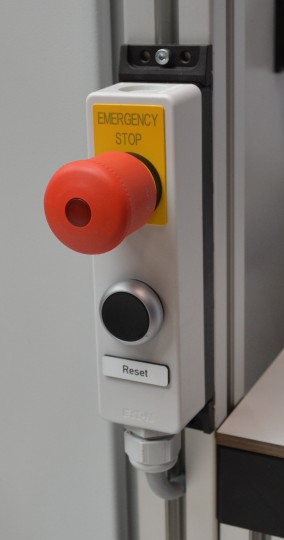
The EST is equipped with an Emergency Stop (E-Stop) button that can be used to immediately stop all operations of the EST in case of an emergency.
This is also triggered when the door is opened.
When the E-Stop is pressed, the safety light will blink red and all operations will be stopped until the E-Stop is released and the system is reset.
You must release the E-Stop and reset using the button before you can continue using the EST.
You must reset at least once after power-up.
Logging in
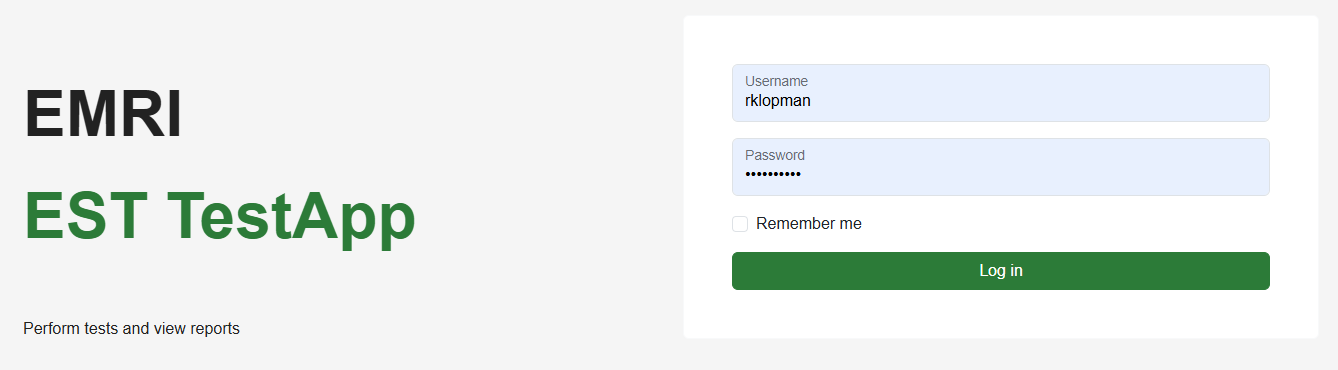
When the EST Test application is started, the login screen will show. Login with the credentials provided by your company.
The EST Test Application runs on the computer of the EST and is responsible for performing the tests using the measurement system of the EST.
You will need at least the Tester role to access the test application.
See Access Levels for more information.
If you forgot your password ask your SystemConfigurator, see User Management.
Home
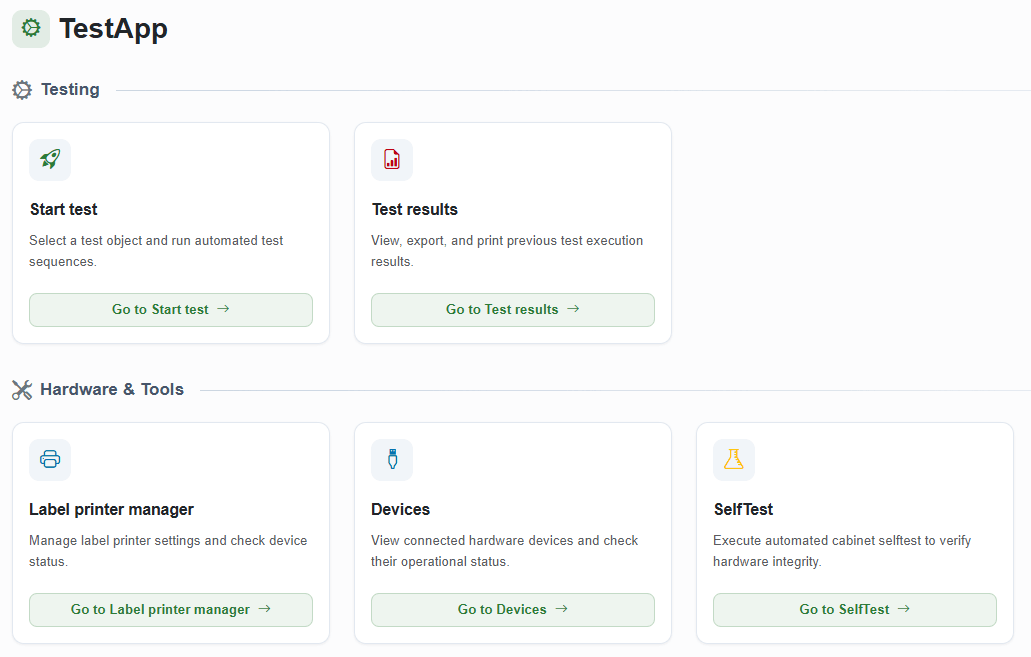
From the home screen you can start a new test, view previous test results or reprint a label, or perform basic troubleshooting.
Depending on your permissions.
Selftest
The selftest is a troubleshooting tool that can be used to check the hardware inside the EST. See Selftest for more information.
Test results
The test results screen allows you to view previous test results and reprint labels.
See Test Results for more information.
Printer
The EST Test Application allows you to manage and configure a printer for labels.
See Printer for more information.
Devices
The devices screen allows you to view the devices connected to the EST and their status.
See Devices for more information.
Troubleshooting
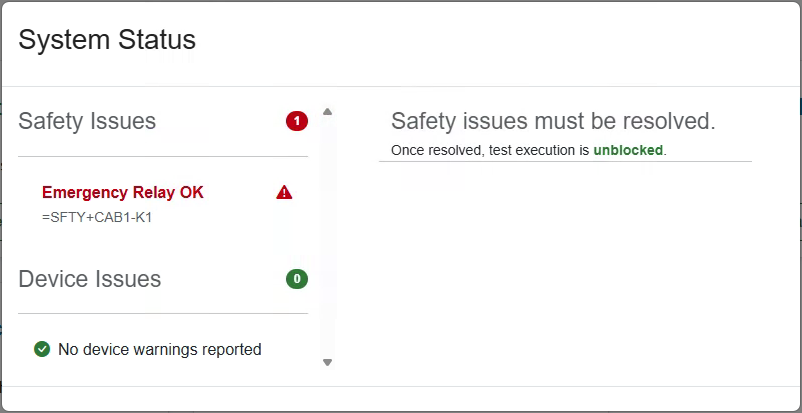
In the right hand corner of the home screen, you can find the notifications bell icon.
If any issues are detected with the EST, a notification will be shown here.
Clicking on the bell icon will show more information about the issue and possible solutions.
For example, in the screenshot below the door is opened or the E-Stop is pressed.
See Troubleshooting for more information.