User Management
The EST software has a user management system to control access to the software and its features. Users can be assigned different roles, which determine their access level to the software.
It is important to manage users carefully as the current user information is stored with test results and shown on reports.
Access Levels
There are three levels of access to the EST software.
- System Configurator
- Has access to all features of the EST software, including user management and self-tests. This role is typically assigned to managers responsible for maintaining the EST software and testing processes.
- Tester
- Has access to the EST Test application and can view results, generate reports, print labels, and run tests. This role is typically assigned to the testers who need to use the EST software for testing purposes only.
- Report Viewer
- Has access to the EST Office application and can view results and generate reports. This role is typically assigned to office personnel processing test results.
| Report Viewer | Tester | System Configurator | |
|---|---|---|---|
| EST TestApp | ❌ | ✅ | ✅ |
| EST OfficeApp | ✅ | ❌ | ✅ |
| Viewing results | ✅ | ✅ | ✅ |
| Generating reports | ✅ | ✅ | ✅ |
| Printing labels | ❌ | ✅ | ✅ |
| Running tests | ❌ | ✅ | ✅ |
| Create or edit test objects | ❌ | ❌ | ✅ |
| Create or edit users | ❌ | ❌ | ✅ |
| Self tests | ❌ | Some | ✅* |
Creating new users
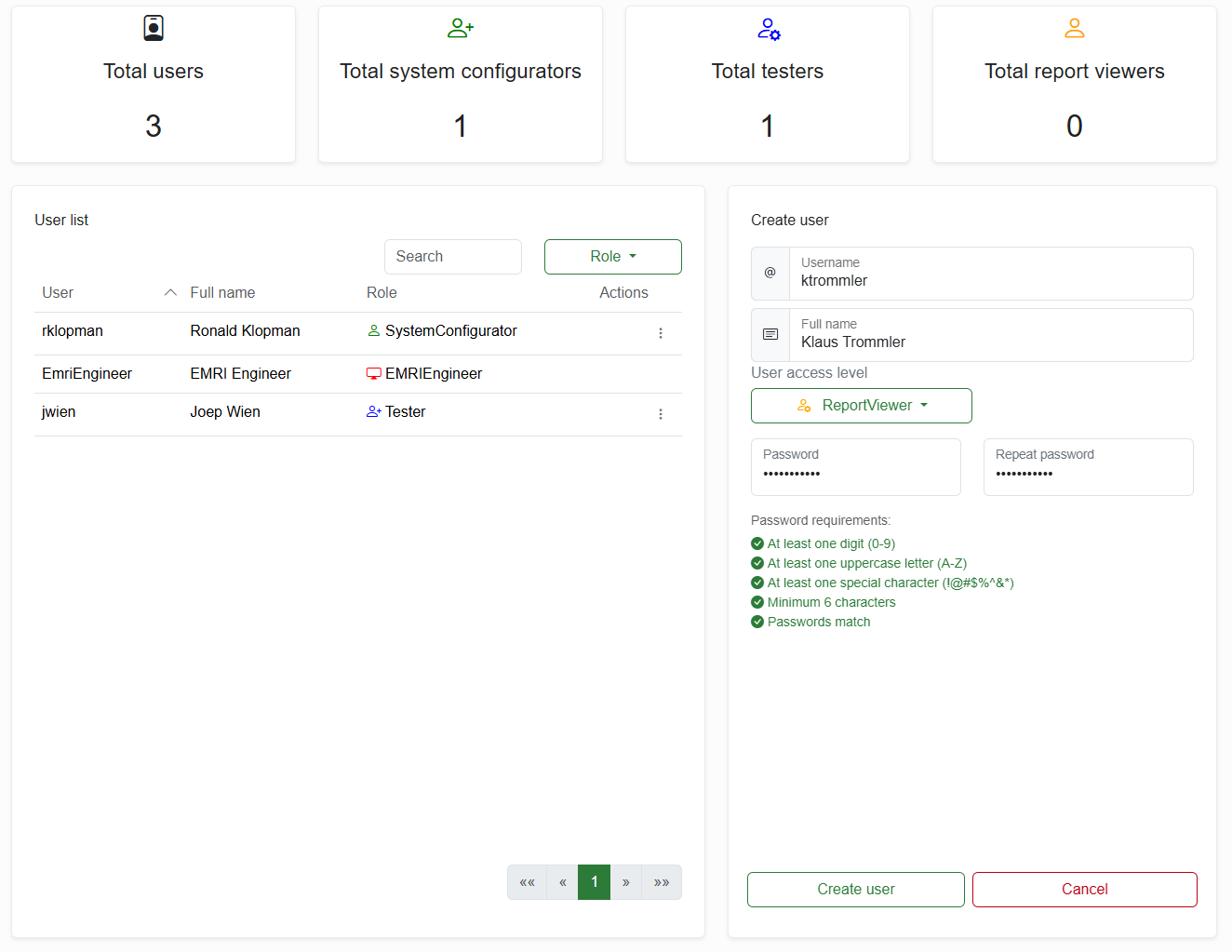
To create a new user, you need to have the System Configurator role. You can create a new user by going to the "Users" page in the EST Office Application and clicking on the "Create new user" button.

You will need to provide a username, password, and select the appropriate role for the new user.
Changing password
To change your own password, click on your name in the top right corner of any application and select "Change password" from the dropdown menu.
