Troubleshooting
This page contains common troubleshooting steps for the EST and the Test and Office application.
Get Support
If you are experiencing issues with the EST Applications that you cannot resolve, you can contact EMRI for support.
To do this, if you contact EMRI, please provide the following information:
- The EST Serial Number if applicable (found on the label on the side of the EST near the power switch).
- A description of the issue you are experiencing.
- A time and date when the issue occurred.
- This can help correlate the issue with the logging information from the EST.
- A supout file if remote support is not possible. See Supout file. You can create a supout file on both EST and Servers where EST Office Application is installed.
Supout file
A supout file is a file that contains logging information about the EST and the applications. This file can be used by EMRI to troubleshoot issues with the EST and the applications. To create a supout file, follow these steps:
- Open the start menu and search for "supout".
- Click on the "EST Supout" application to start it.

- A command prompt will run.
It may ask some non-essential questions, it will pick an option after a few seconds if you do not respond.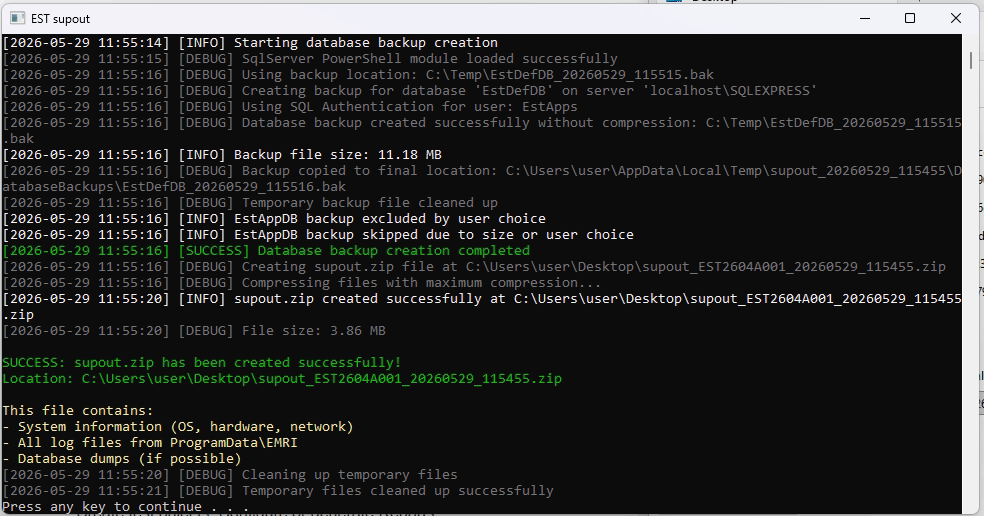
- Wait for the application to finish running. This may take a few seconds.
- A file explorer window will open with the supout file selected. The file is named "supout_<serial_number>_<timestamp>.zip".
(the command prompt can be closed) - Provide this file to EMRI for the fastest support.
The supout file should fit in a standard email attachment, but if it is too large, it can also be obtained or created using remote support software AnyDesk.
Version
Check the version of the software on the bottom right of the window.
Here a line contains all relevant version informations for the software.
For example:
Frontend: 0.10.73 | Test API: 0.10.73 | EST S/N: EST2300P001 | Office API: 0.10.73
The components shown in this line:
- Frontend: the version of the frontend software.
- Test API: the version of the test core performing electrical tests. (only shown on the EST)
- EST S/N: the serial number of the EST. (only shown on the EST)
- Office API: the version of the office backend.
Software troubleshooting
The following sections provide troubleshooting steps for issues encountered with the EST Applications.
Required API Crashed
It may happen that a Required API crashes. If this occurs, a popup will show with logging information about the crash. This information can be used to troubleshoot the issue.
Most of the time, a Required API crash is caused by an issue with the software itself. In this case, the best course of action is to contact your SystemConfigurator and provide them with the logging information from the crash. They can then use this information to troubleshoot the issue and find a solution or contact EMRI for further support.
Often a power cycle of the EST resolves the issue. Please properly shut down the computer first.
If the issue persists after a restart, it is likely that there is a more serious issue. See Get Support.
Office Application not running
If you encounter "server not found" or Waiting for required services (ESTOfficeAPI) or similar errors when trying to reach the Office application at http://est-manager.local or your custom url, it may indicate that the application may not be running or there is a network connectivity issue.
Or if the Test Application is unable to detect the Office Application, you can follow the troubleshooting steps below.
After starting the computer that hosts the Office Application, it may take several minutes for the required database service to be fully initialized.
If you are unable to diagnose the issue, see the Get Support section for the information to collect before seeking assistance.
The EST Office Application is only available within the network where it is hosted.
Verify network
By default the Office Application runs on the EST itself.
However, if you have configured it to run on a separate server, you need to ensure that the network connection between the EST and the server is properly established.
Verify Office Application status
If the Office Application is not running, you need to check its status based on where it is hosted.
If this is on the EST itself you can follow the steps below.
Status Check
If you use the search function in the start menu to look for EMRI EST Office App script. This can be used to control the Office Application, including starting, stopping, and checking its status.
If the script reports Service 'ESTOfficeAPI' is not installed, it means the Office Application does not run on this machine and is hosted elsewhere.
Contact your IT administrator for further assistance.
Use option 4 to restart the Office Application Service.
Manual Restart
If you can't find this script in the start menu, you can directly navigate to the following path and run the service-manager.bat file:
C:\Program Files\EMRI\EST OfficeApi\service-manager.bat
Or operate the service directly via the Windows Services management console (services.msc).
Hardware troubleshooting
The following section provides troubleshooting steps for common hardware issues related to the EST system.
No power, no display
When there is no power on the power strip under the table, verify the following items:
- The EST is plugged in
- The power switch is in the
ONposition - The circuit breakers inside the EST are not tripped.
The circuit breakers are located on the bottom rail and are behind the instrument rack.
EST computer not powering on
The computer in the EST is configured to power on automatically when the EST is powered on.
If the computer was shutdown, but the EST not turned off, the computer will not automatically power on again and you may need to cycle the power switch. See power on/off.
Otherwise you need to open the cabinet and press the power button on the PC itself.
The PC is located on the side of the EST cabinet, which side depends on the ordered configuration.
24V Power Supply
If the system status indicates an issue with the 24V Power Supply Ok, =SUP-CAB1-G2 , it means that the 24V power source is not functioning correctly and needs to be checked.
Contact EMRI for service.
RCD Circuit Breaker
If the system status indicates an issue RCD Circuit Breaker Ok, =MSR-CAB1-F1, it means that the RCD power circuit breaker has tripped and needs to be reset.
The circuit breakers are located on the bottom rail and are behind the instrument rack.
If this keeps occurring when testing voltage dependent RCD devices, verify the RCD is not a directional RCD. Such as: ETI KZS series.
Service Key ⚠️
If the system status reports a warning regarding the service key, it indicates that the service key may left in the EST and needs to be removed.